

Introduction
In the rapidly evolving landscape of frontend development, user experience (UX) has become the primary differentiator between good applications and great ones. While static interfaces serve a purpose, the modern web demands fluidity. Users expect interfaces that react naturally to their interactions, morphing and shifting rather than snapping abruptly between states. Within the bustling ecosystem of **React News**, one library has consistently stood out for its ability to bridge the gap between design and implementation: Framer Motion.
Specifically, the “magic” behind Framer Motion’s layout animations has revolutionized how developers handle DOM changes. Historically, animating layout properties like `width`, `height`, `flex-direction`, or list reordering was a performance nightmare and a mathematical headache involving complex CSS calculations. Today, Framer Motion abstracts this complexity using a technique known as FLIP (First, Last, Invert, Play), allowing elements to animate smoothly between valid CSS layouts with a single prop.
This article delves deep into the mechanics of layout animations in Framer Motion. We will explore how to implement shared element transitions, handle complex list reordering, and optimize performance for production-grade applications. Whether you are following **Next.js News** for server-side rendering strategies or keeping up with **React Native News** for mobile parity, understanding these animation principles is essential for the modern interface engineer.
Section 1: The Core Mechanics of the Layout Prop
The foundation of “magic” motion in Framer Motion is the `layout` prop. In standard CSS, transitioning properties that affect layout (like `justify-content` or `grid-template-columns`) usually results in an instant snap rather than a smooth animation. This is because the browser has to recalculate the geometry of the entire document flow.
Framer Motion solves this by taking a snapshot of the element’s position before the update (First), calculating where it will end up (Last), and then applying a transform to invert the change (Invert) before playing the animation (Play). This allows high-performance animations using GPU-accelerated transforms (`scale` and `translate`) to mimic expensive layout changes.
Implementing a Simple Layout Switch
Let’s look at a fundamental example: a toggle switch. In vanilla CSS, moving the handle from left to right often involves animating `left` or `margin`, which triggers layout thrashing. With Framer Motion, we simply change the flex alignment and let the library handle the rest.
import React, { useState } from "react";
import { motion } from "framer-motion";
import "./styles.css";
/**
* A simple toggle component demonstrating the power of the layout prop.
* By toggling 'justify-content', the child element automatically
* slides to the new position.
*/
export default function MagicToggle() {
const [isOn, setIsOn] = useState(false);
const toggleSwitch = () => setIsOn(!isOn);
return (
{/*
The layout prop detects that the parent's flex alignment
has changed and animates the child to the new position.
*/}
In the code above, we are not calculating pixels. We are simply changing the React state. This declarative approach aligns perfectly with trends seen in **Recoil News** and **Jotai News**, where state drives the UI, and the UI library handles the transition.
Understanding Scale Distortion
One common pitfall when using the `layout` prop on a parent container is that children might distort. If a parent `div` doubles in width, the child `div` might stretch unnaturally during the transform. Framer Motion provides a solution: applying the `layout` prop to the children as well. This tells the library to correct the scale distortion on the child element in real-time, keeping text and images crisp.
Section 2: Shared Element Transitions with layoutId
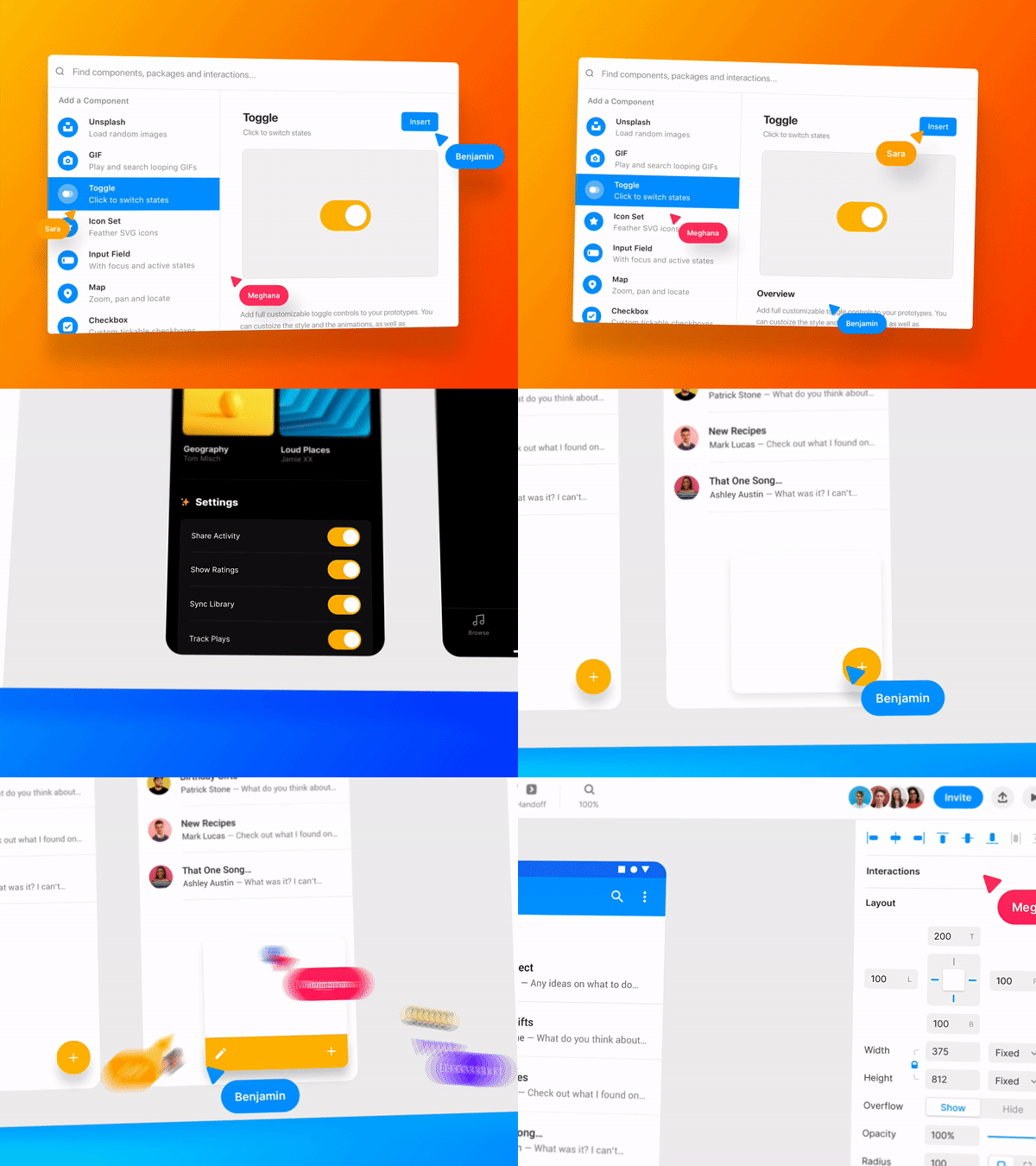
While the `layout` prop handles changes within a single component, the true “magic” often referenced in **Framer Motion News** is the ability to morph one component into a completely different one elsewhere in the DOM tree. This is achieved using the `layoutId` prop.
When two components rendered at the same time share the same `layoutId`, Framer Motion treats them as the same entity. It will automatically animate from the geometry of the first one to the geometry of the second one. This is incredibly powerful for creating navigation tabs, expanding cards, or list-to-detail transitions—patterns frequently discussed in **React Router News** and **React Navigation News**.
Example: Animated Navigation Tabs
A classic UI pattern is the “sliding underline” or “active pill” background on a navigation bar. Instead of calculating the `offsetLeft` and `offsetWidth` of the active tab, we can render a motion component with a unique `layoutId` only inside the active tab.
import React, { useState } from "react";
import { motion } from "framer-motion";
const tabs = [
{ id: "react", label: "React" },
{ id: "next", label: "Next.js" },
{ id: "remix", label: "Remix" },
{ id: "gatsby", label: "Gatsby" },
];
export default function AnimatedNavBar() {
const [activeTab, setActiveTab] = useState(tabs[0].id);
return (
{tabs.map((tab) => (
))}
);
}This technique creates a seamless user experience. It is worth noting that if you are using complex routing solutions found in **Remix News** or **Next.js News**, you can persist these animations across page transitions using the `
Section 3: Advanced Lists and Layout Groups
Handling lists is a staple of application development. Whether you are displaying data fetched via **Apollo Client News** or managing local state with **Zustand News**, lists change. Items are added, removed, or reordered.
Without animation, a list item disappearing causes the items below it to jump up instantly. Framer Motion’s `AnimatePresence` combined with the `layout` prop solves this elegance.
The LayoutGroup Component
Sometimes, you have multiple distinct groups of layout animations that shouldn’t interfere with each other, or conversely, you want to group them together so they share layout calculations. The `
Code Example: Reordering List with AnimatePresence
Here is a robust example of a list that handles additions and deletions gracefully. Notice how the surrounding items slide into place when a neighbor is removed.
import React, { useState } from "react";
import { motion, AnimatePresence } from "framer-motion";
const initialItems = [
{ id: 1, title: "Check React News" },
{ id: 2, title: "Update Vite Config" },
{ id: 3, title: "Refactor Redux Store" },
];
export default function TodoList() {
const [items, setItems] = useState(initialItems);
const removeItem = (id) => {
setItems((prev) => prev.filter((item) => item.id !== id));
};
const addItem = () => {
const newId = Math.max(...items.map(i => i.id), 0) + 1;
setItems([...items, { id: newId, title: `New Task ${newId}` }]);
};
return (
{/* AnimatePresence allows components to animate out before unmounting */}
{items.map((item) => (
{item.title}
))}
);
}In this example, `mode=”popLayout”` is a crucial setting introduced in newer versions of Framer Motion. It removes the exiting element from the layout flow immediately, allowing the remaining items to slide up into the empty space *while* the deleted item fades out. This prevents the “snap” effect often seen in older implementations.
Section 4: Best Practices and Performance Optimization

While Framer Motion is highly optimized, layout animations are computationally expensive compared to standard opacity or transform animations. As you integrate these features into projects using **Blitz.js News**, **RedwoodJS News**, or **Razzle News**, keep the following best practices in mind.
1. Prefer `layout=”position”` when possible
By default, `layout` animates both size and position. If you know an element will only change position (and not size), set `layout=”position”`. This reduces the calculation overhead.
2. Avoiding Distortion on Content
As mentioned earlier, scale distortion is a side effect of transform-based layout animation. If you have an expanding card with text inside, the text might stretch horizontally as the card widens. To fix this, give the text element a `layout` prop as well.
  {/* The heading will distort without the layout prop */}
  Card Title

    Detailed content goes here...
3. Accessibility Considerations
Animations can be disorienting for users with vestibular disorders. Always respect the user’s system preferences. Framer Motion handles this well, but you should explicitly manage it. You can use the `useReducedMotion` hook to conditionally disable the `layout` prop.
4. Testing and Stability
When incorporating these animations, testing becomes critical. Following **Cypress News** or **Playwright News** can help you set up visual regression tests. However, testing animations can be flaky. It is often recommended to disable animations in your test environment or wait for animations to settle before asserting DOM states. Tools mentioned in **Jest News** and **React Testing Library News** are essential here for unit testing component logic independent of the animation layer.
5. Integration with Native Platforms
If you are working in the mobile space, referencing **React Native News**, you might be using **React Native Reanimated News** or **React Native Layout Animation**. While Framer Motion is web-first, the concepts of shared element transitions are parallel. Libraries like **Tamagui News** and **NativeBase News** are increasingly adopting similar declarative animation APIs to bridge the gap between web and native motion.
Conclusion
Framer Motion’s layout animations represent a significant leap forward in declarative UI development. By abstracting the complex mathematics of FLIP transitions into a simple `layout` or `layoutId` prop, it empowers developers to create “magical” interfaces that feel organic and responsive.
From simple toggle switches to complex shared element transitions across routes, the library integrates seamlessly with the modern stack, whether you are building static sites with **Gatsby News** or dynamic applications with **Next.js News**. As the ecosystem grows, keeping an eye on **Framer Motion News** will ensure you stay updated with performance improvements and new features like the `layoutScroll` prop.
The key to mastering these animations is restraint and purpose. Use them to guide the user’s eye, provide context during state changes, and smooth out the rough edges of the DOM. Start experimenting with the code snippets provided above, and watch your static layouts come to life.